How to Get WhatsApp Notifications from Webflow Forms

Webflow’s form handling is solid. Someone submits, you get an email, the data shows up in your dashboard.
The problem is the email part.
I’ve talked to freelancers and agency owners who check email twice a day. Sometimes less. By the time they see a form submission, the lead has already reached out to two other people. The first one to respond usually wins.
WhatsApp fixes this. You see messages within minutes. But Webflow doesn’t have a native WhatsApp integration, and most workarounds involve Zapier, Make, or duct-taping three different services together.
I built FormBeep to make this simpler. One setup, no recurring Zapier costs, works on all Webflow plans including free.
Two Ways to Connect
There are two methods depending on your Webflow plan:
Method 1: Webhook ⭐ Recommended Works on all Webflow plans including free. No code required. Takes about 2 minutes.
Method 2: Embed Script Works on paid Webflow plans only (requires Custom Code access). Better if you prefer a client-side approach.
If you’re not sure which to pick, go with Method 1.
Method 1: Webhook (All Webflow Plans)
This is the approach I recommend. No code, works on free plans, takes about 2 minutes.
Step 1: Sign up and verify your WhatsApp
Head to app.formbeep.com and create an account. You can sign up with Google, GitHub, or email.
Once you’re in, you’ll need to verify your WhatsApp number. Click Verify WhatsApp, scan the QR code with your phone, and send the verification message it generates.
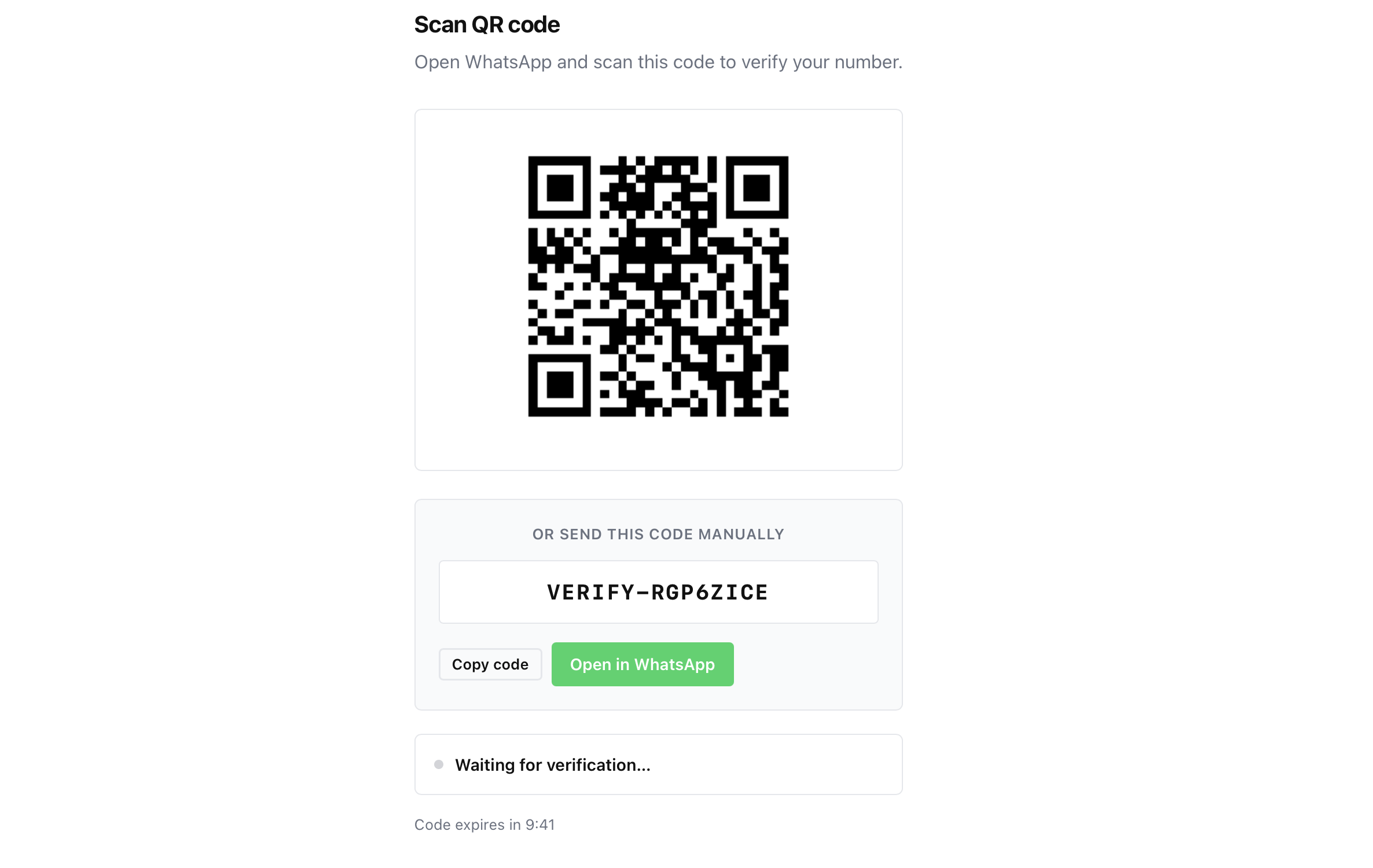
Takes about 60 seconds. The Free plan includes 50 alerts total, no credit card required.
Step 2: Create a webhook
In your FormBeep dashboard, go to Webhooks → + Create webhook.
Select Webflow as the platform, give it a name (something like “My Webflow Site”), and click Create.
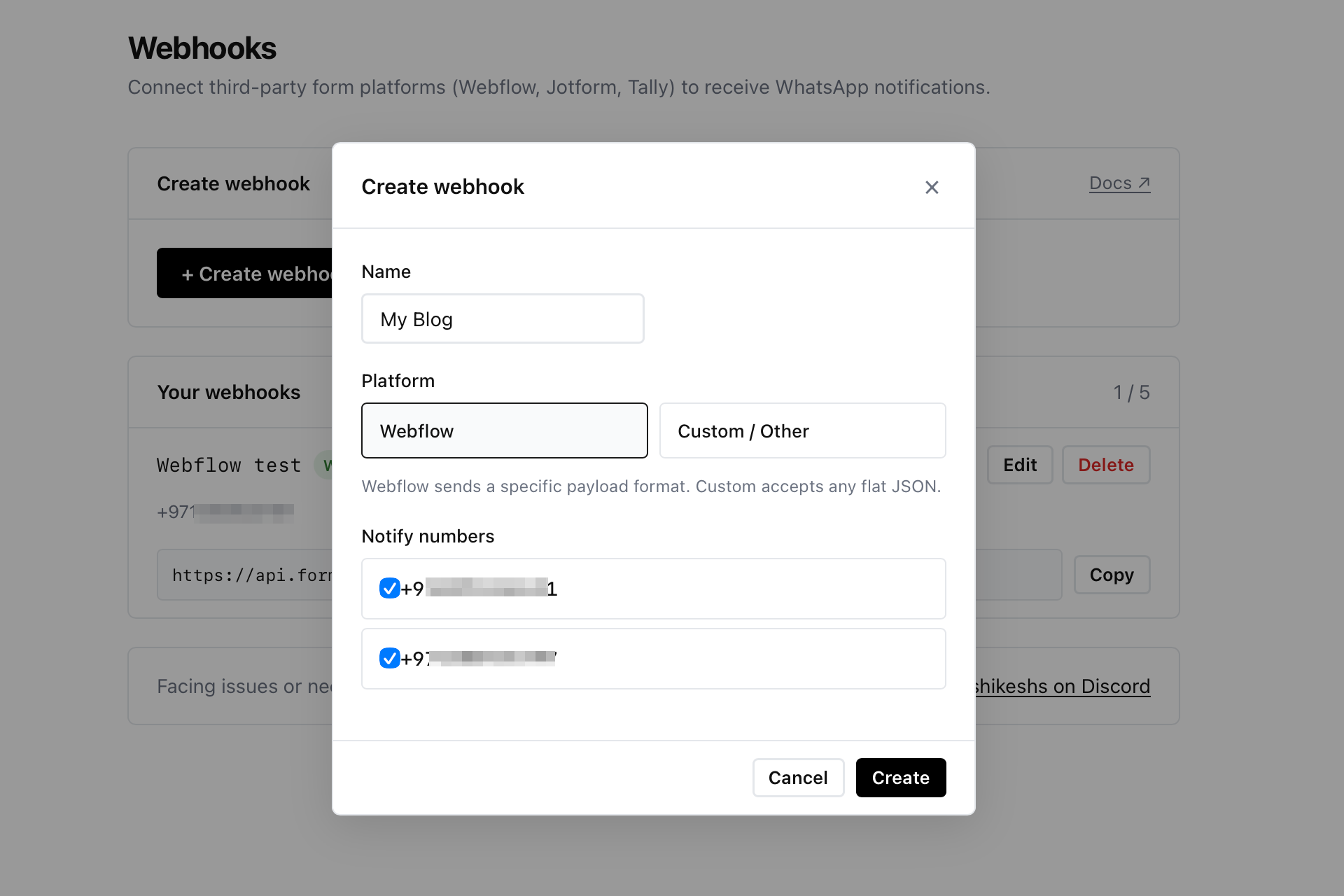
Copy the webhook URL it generates. You’ll paste this into Webflow in the next step.
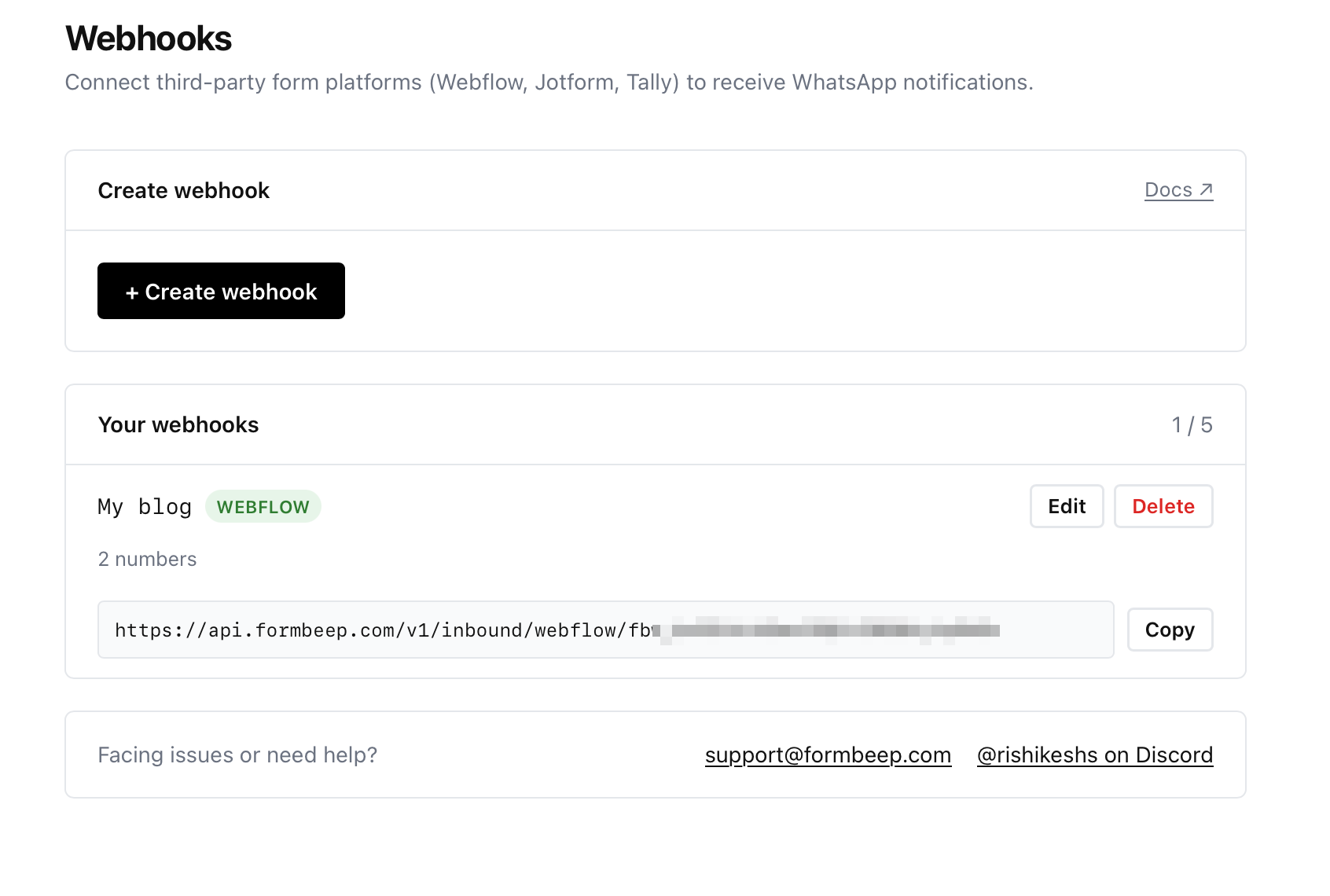
Step 3: Add the webhook in Webflow
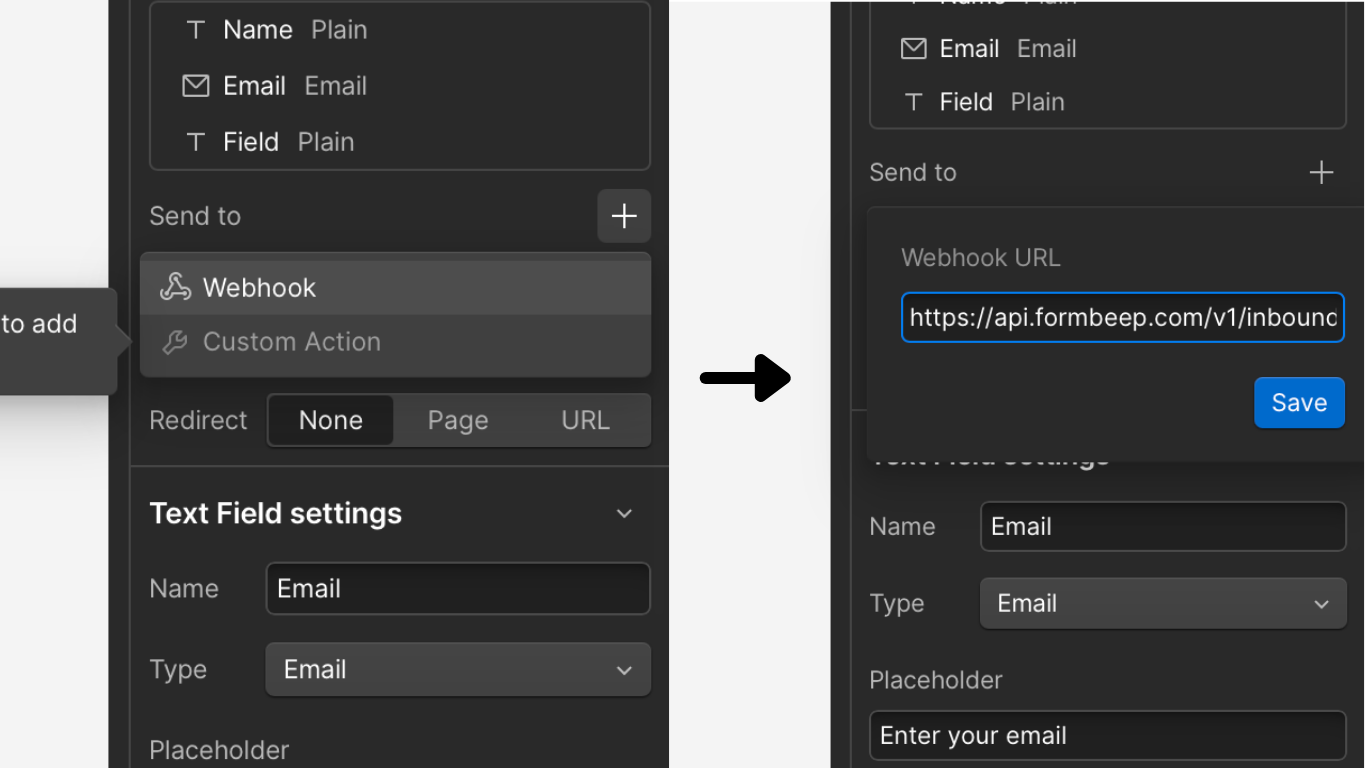
Open your site in the Webflow Designer. Click on your form element to select it, then open the Settings panel on the right.
Scroll down to Form Settings. Under the Action section, you’ll see a Webhooks option. Click the + button to add a new webhook.
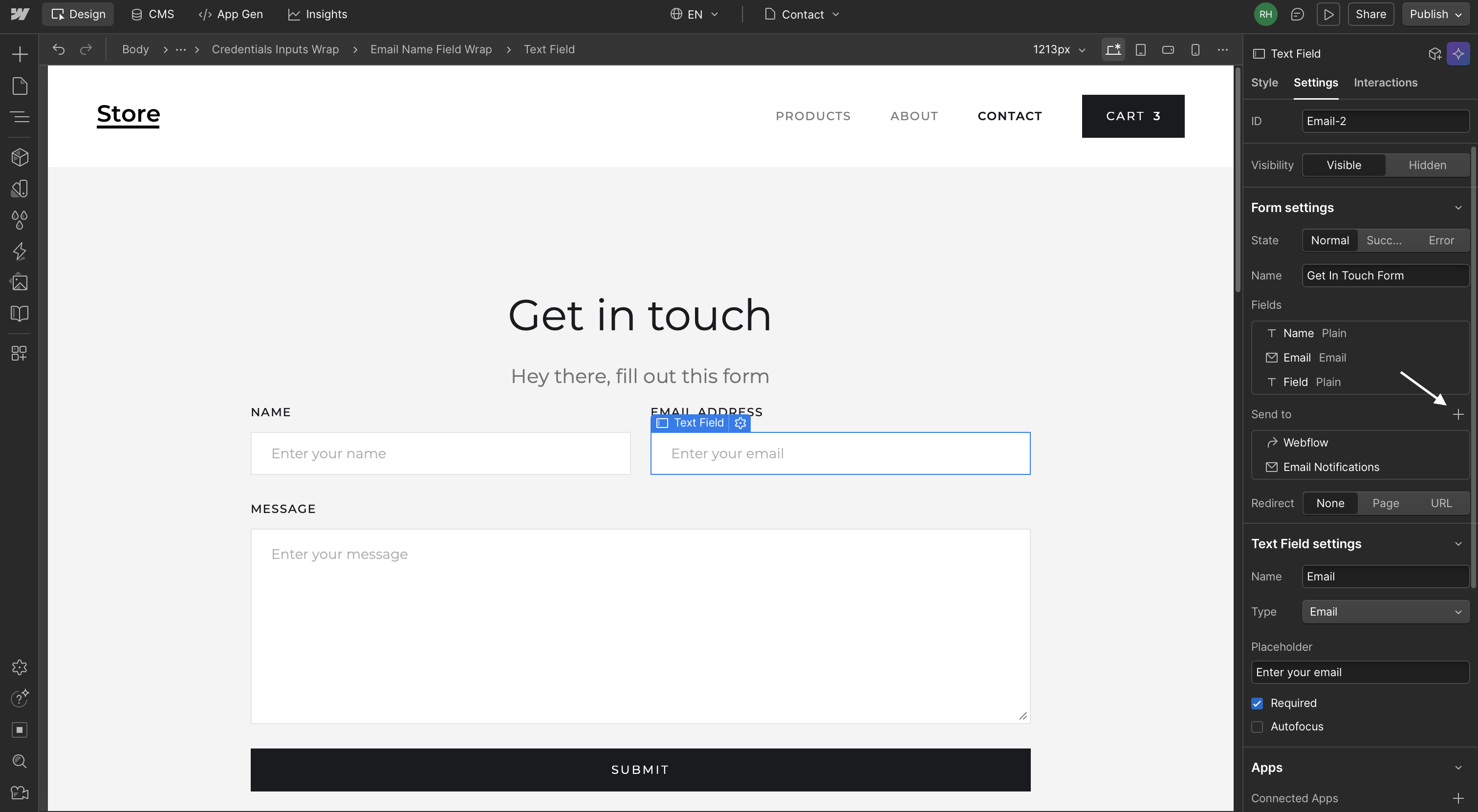
Paste your FormBeep webhook URL. You can ignore the “Webhook Secret” field.
Step 4: Publish and test
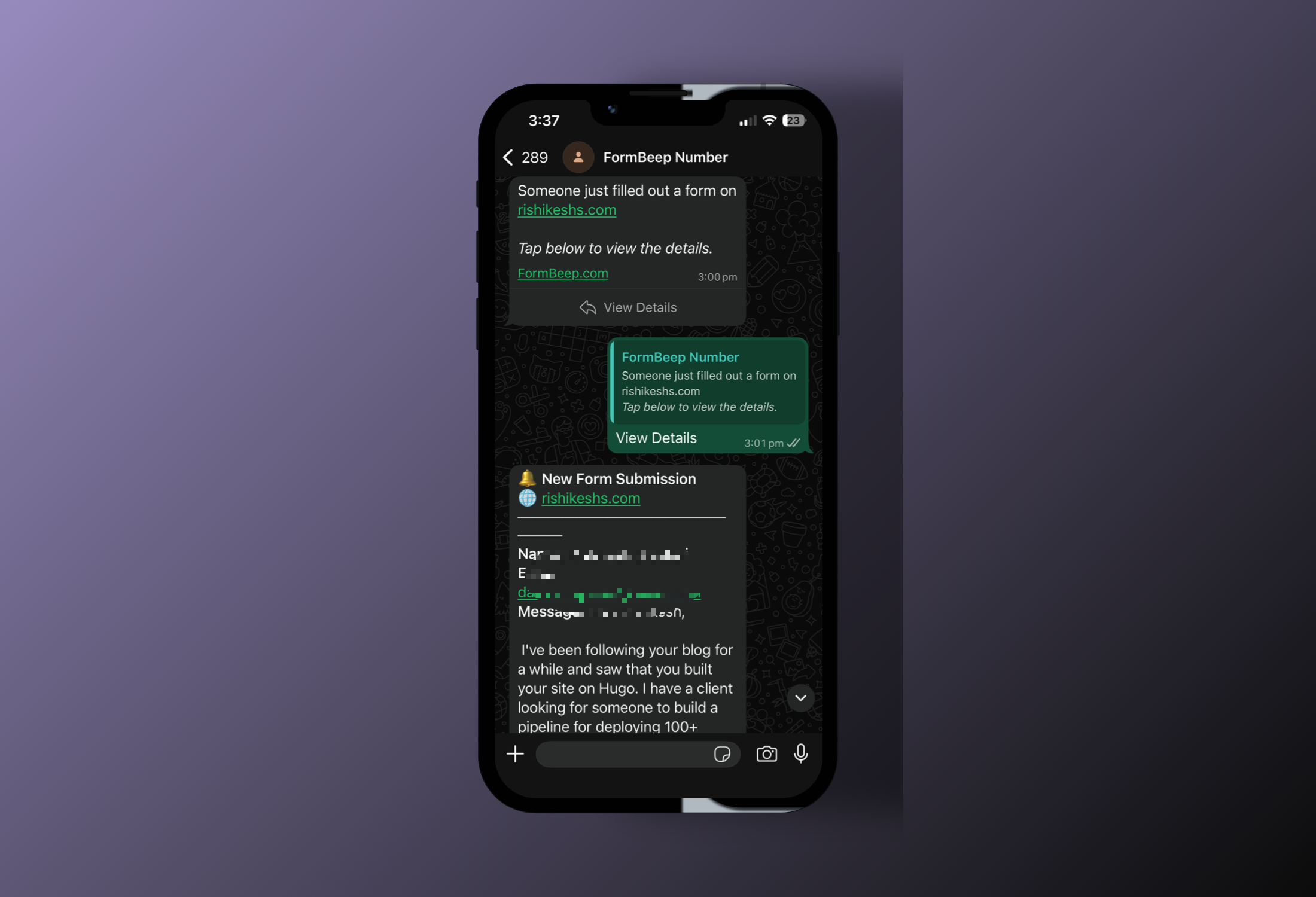
Hit Publish in Webflow. Then go to your live site and submit a test form.
You should get a WhatsApp message within seconds.
Tap View Details to see the full submission.
Method 2: Embed Script (Paid Webflow Plans)
If you’re on a paid Webflow plan and prefer client-side integration, here’s the embed approach.
Step 1: Sign up and add your domain
Create a free account at app.formbeep.com and verify your WhatsApp (same process as above).
Then go to Domains in your dashboard and add your Webflow domain. This could be yoursite.webflow.io or your custom domain.
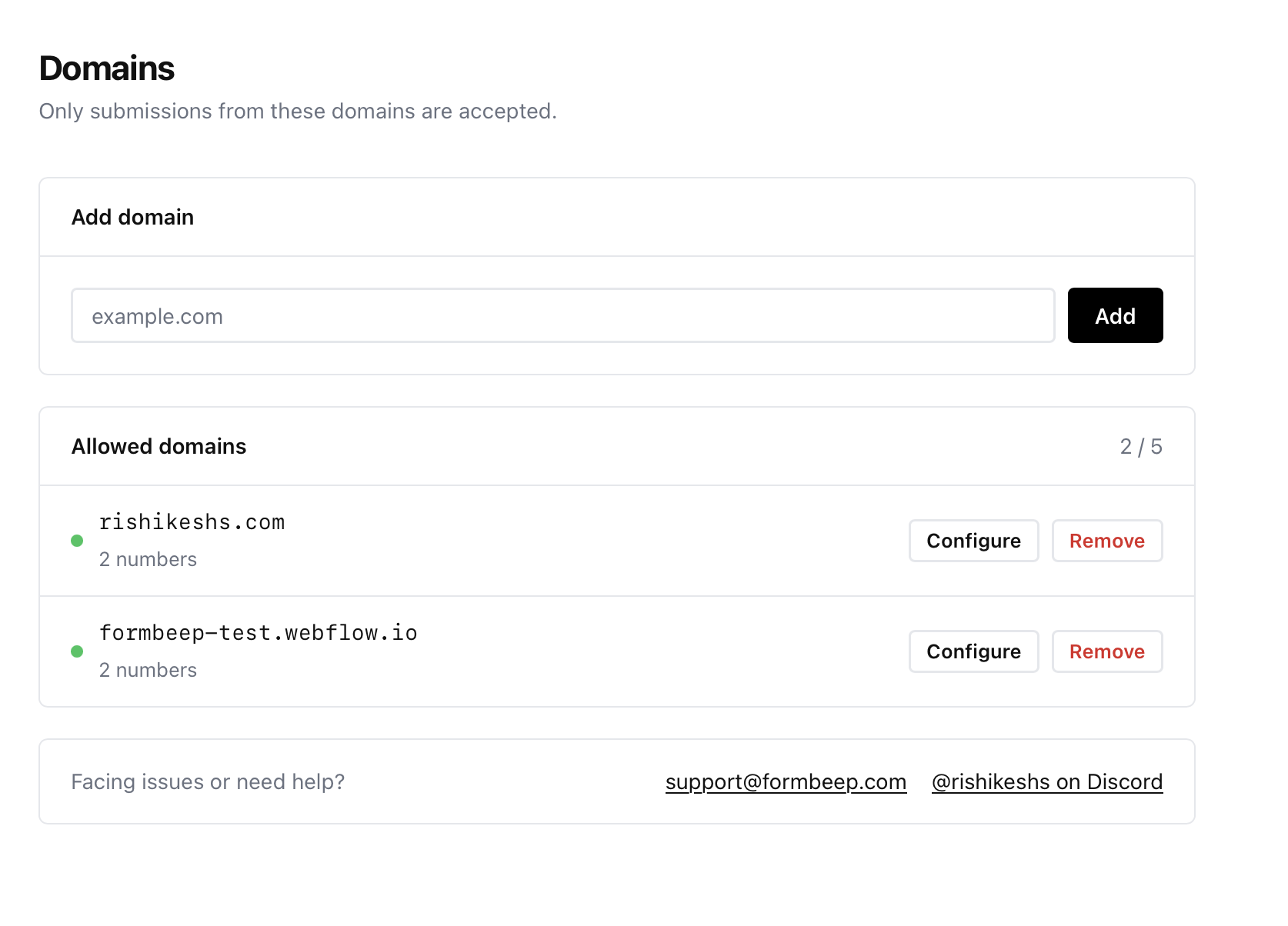
Make sure it matches exactly, including or excluding www.
Step 2: Copy your embed snippet
From the FormBeep dashboard, go to Overview and copy your embed snippet:
<script src="https://api.formbeep.com/v1/s/formbeep.js"
        data-api-key="YOUR_API_KEY"></script>

Step 3: Paste into Webflow Project Settings
In Webflow, go to Project Settings → Custom Code → Footer Code.
Paste the snippet and click Save Changes.
Use Project Settings to add the snippet to your Footer Code. This loads FormBeep on every page, so all forms across your site will trigger WhatsApp notifications.
If you only want notifications from a specific form on a specific page, add the snippet to that page’s custom code instead. Other forms on your site won’t be affected.
Refer to the official Webflow documentation for more detailed information on adding custom code.
Step 4: Publish and test
Publish your site and submit a test form. You should get a WhatsApp notification within seconds.
What Happens Behind the Scenes
Here’s the flow when someone submits your form:
- Form submitted → FormBeep intercepts the submission
- Edge API → Data is validated and temporarily stored on Cloudflare’s edge network
- WhatsApp sent → You get a message with a “View Details” button
- Data deleted → Once you tap View Details, the submission is shown and then permanently erased
FormBeep never touches your form’s original behavior. Success messages, redirects, Zapier integrations, whatever you had set up keeps working.
Why WhatsApp Instead of Email?
Webflow’s email notifications work. The problem is email itself.
You’re in a meeting, out with a client, doing actual work. You check email two hours later. By then the lead has moved on, or worse, they’ve already heard back from a competitor.
WhatsApp is different. 98% open rate. Most messages read within minutes.
Research shows responding within 5 minutes dramatically increases your chances of converting a lead. FormBeep makes sure you know about submissions the moment they happen.
Troubleshooting
Webhook not firing? Webflow webhooks only work on published sites, not in preview mode. Make sure you’ve published and you’re testing on the live URL.
Not getting WhatsApp messages? Check that your WhatsApp number is verified in FormBeep. Go to Dashboard → Settings and confirm your number shows as verified.
Embed script not working?
Make sure the domain in FormBeep matches your published domain exactly. If your site is at www.example.com, add that, not example.com.
FAQ
Does this work on Webflow’s free plan? Yes. The webhook method works on all Webflow plans including free.
Will this break my form’s success message? No. FormBeep doesn’t interfere with your form’s behavior. Success messages and redirects work exactly as before.
Can I send notifications to multiple WhatsApp numbers? Yes, depending on your plan. Free supports 1 recipient, Starter 2, Pro 5, and Agency 25.
Do I need a WhatsApp Business account? No. Notifications go to your regular WhatsApp number.
Does this work alongside Webflow’s native form submissions? Yes. Your submissions still appear in Webflow’s dashboard, and any existing integrations keep working. FormBeep just adds the WhatsApp layer.
If you’ve been missing Webflow leads because email notifications got buried, give FormBeep a try. Free plan, no credit card, setup takes about 5 minutes.
Need help? Email hello@formbeep.com or message me personally on Discord at rishikeshs.
With love,
Rishi
Related Articles
-
→
How to Get Notifications on WhatsApp from Form Submissions
Stop missing form submissions because they landed in spam. Here's how to get instant WhatsApp notifications from any website form without complicated integrations or webhook setups.
-
→
Why You're Missing Leads from Your Website Contact Form (And How to Fix It)
If you've ever had a client say 'I never got that form submission,' this post is for you. I dug into why form notification emails go missing and built something to fix it.
-
→
How to Get WhatsApp Lead Notifications Without Putting Your Number on Your Website
Most 'WhatsApp on website' solutions require you to expose your phone number. Here's how I set up instant WhatsApp lead notifications from website forms without my number being visible anywhere on the site.